- make a copy of
AltServer.appTo your/ApplicationsFolder. - Start AltServer and it will appear as an icon in the menu bar.
- Connect your iOS device to your computer and make sure it is unlocked. If necessary, use your computer to trust your device.
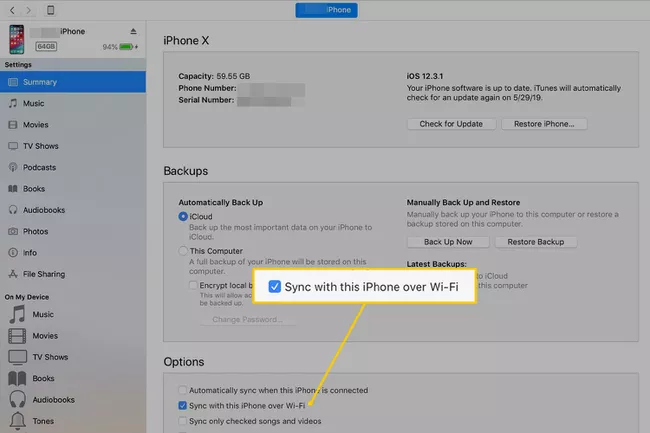
- Enable Wi-Fi Sync on your device.
(macOS 10.14 Mojave or earlier)Open iTunes and enable "Sync with this iPhone/iPad over Wi-Fi" for your device.
(macOS 10.15 Catalina or later)Open Finder and enable "Show this iPhone/iPad on WiFi" for your device.
6. Click the AltServer icon in the Mac menu bar, go to Install AltStore, and select your device.
If you see the "Install Mail Plug-in..." alert, please follow the instructions on the next page.
7. Enter your Apple ID email address and password. This will allow AltServer to authenticate with Apple and configure your account to support sideloaded applications.
Your Apple ID and passwordwill only sendGive it to Apple, not us or anyone else. https://cdn.iframe.ly/KOelJbI
8. Wait a few seconds and an AltServer notification will appear on your Mac indicating that AltStore has been successfully installed on your device.
If you do not see any notifications from AltServer, make sure you have granted AltServer permission to send you notifications in System Preferences. You may need to reboot your device for the AltStore to appear on the home screen.
8. On your iOS device, go to Settings -> General -> Profile and Device Management. Tap "Trust [your Apple ID]" and then tap "Trust" again to confirm.
"Description files and device management" may be interpreted as various things like "device management" depending on your version, but you can always find it near the bottom of Settings->General. "General" near the bottom.

(iOS16+) Requires developer mode to be enabled
To use AltStore on iOS 16 or later, you'll need to go to Settings->Privacy & Security->Developer Mode to enable Developer Mode on your device. Developer Mode.
You can now sideload applications using the AltStore!